PC Controls
Movement: WASD to walk/run. Space to jump if enabled in hub areas.
Camera: Hold right mouse button and drag to rotate; scroll wheel zooms.
Interact: Click on NPCs, shop terminals, crate machines, and trading boards.
Inventory: Keybind or on-screen bag icon — varies by patch; check settings menu after Patch Notes.
Codes menu: Click gift icon or sidebar Codes button per How to Redeem.
PC offers the fastest trading UI precision for verifying How to Trade panel details before confirming high-tier deals.
Mobile Controls
Movement: Virtual joystick lower left.
Camera: Swipe right side of screen.
Interact: Tap prompts when near objects.
Inventory & trade: Tap icons; use landscape mode for wider trade window during Trading Boards sessions.
Mobile players should paste codes instead of typing — see How to Redeem. Confirm trades slowly; smaller screens hide mutation particles important on Mutations.
Console Controls
Console uses gamepad defaults from Roblox platform layer: left stick move, right stick camera, A/X confirm, B/Circle cancel — mirroring trade UI check mark and cross behavior in How to Trade. Connect keyboard for code redemption if on-screen keyboard frustrates.
Console trading is viable but slower for rapid cancel reactions against Scam Protection bait-and-switch — consider PC or mobile for grail trades.
Trading UI Controls
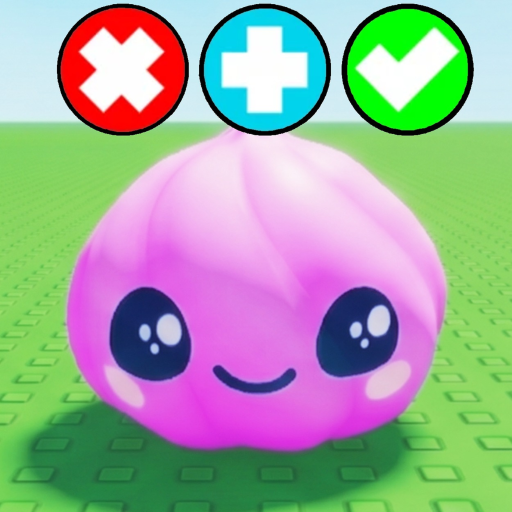
On board: approach pad to open trade window. Select inventory items to drop on your side. Tap plus button to add additional items. Press check mark when ready — both players must confirm. Press cross to abort instantly.
Never bind confirm to muscle memory without reading both panels. Lag on 25-player servers can delay UI updates — wait for visual lock before check mark.
Control Settings Tips
Adjust Roblox sensitivity for smoother camera during shop and board navigation. Toggle graphics lower on mobile to reduce frame drops mid-trade. Revisit this page after major patches — SGR Studios occasionally remaps UI buttons during quality-of-life updates on Trello & Roadmap.
Accessibility and Comfort Settings
Roblox platform settings offer sensitivity sliders crucial for smooth camera panning during shop and board navigation. Lower sensitivity helps mobile players inspect Mutations particles; higher sensitivity helps PC traders scan partner panels quickly in How to Trade UI.
Reduce motion sickness by disabling excessive camera shake if future SGR Studios updates add event effects. Larger UI scale on mobile prevents mis-taps on cross versus check mark — costly mistakes on A-tier trades.
Remap nothing illegally — third-party macro tools violate ToS same as Scripts. Stick to in-game and Roblox-native bindings documented after Patch Notes.
Controls After Patch Days
Re-open Controls after major Patch Notes — SGR Studios occasionally relocates inventory buttons or trade confirm icons during UX passes. First session post-patch, spend five minutes in spawn re-mapping muscle memory before carrying A-tier items to Trading Boards. Roblox client updates separate from game updates also shift default bindings unpredictably.
Latency and Input Lag
High ping causes trade UI desync — items appear to vanish or duplicate visually before server reconciliation. Play on stable Wi-Fi before S-tier Trading Boards sessions; mobile data spikes risk misconfirm during lag illusions described in How to Trade troubleshooting. Wired Ethernet on PC remains gold standard for high-value confirm timing.
Lower graphics settings sometimes reduce input lag on weak mobile devices at cost of mutation visibility — balance per trade importance using Mutations inspection needs.
Voice Chat Considerations
Roblox voice chat in 25-player Trade Squishy Dumplings servers adds negotiation speed but scam social engineering too — verbal pressure complements visual bait-and-switch on Trading Boards. Disable voice if uncomfortable; text trade terms referencing Tier List tiers before confirming remain valid etiquette without voice requirement from SGR Studios systems.
Quick Reference
Trade confirm binds to check mark and cross — muscle memory those two before any Tier List graded deal in Trade Squishy Dumplings.
Closing Notes
Controls mastery is invisible until misclick costs a mutation trade — practice confirm and cancel on D-tier junk trades before graduating to Mutations negotiations worth entire inventory value.